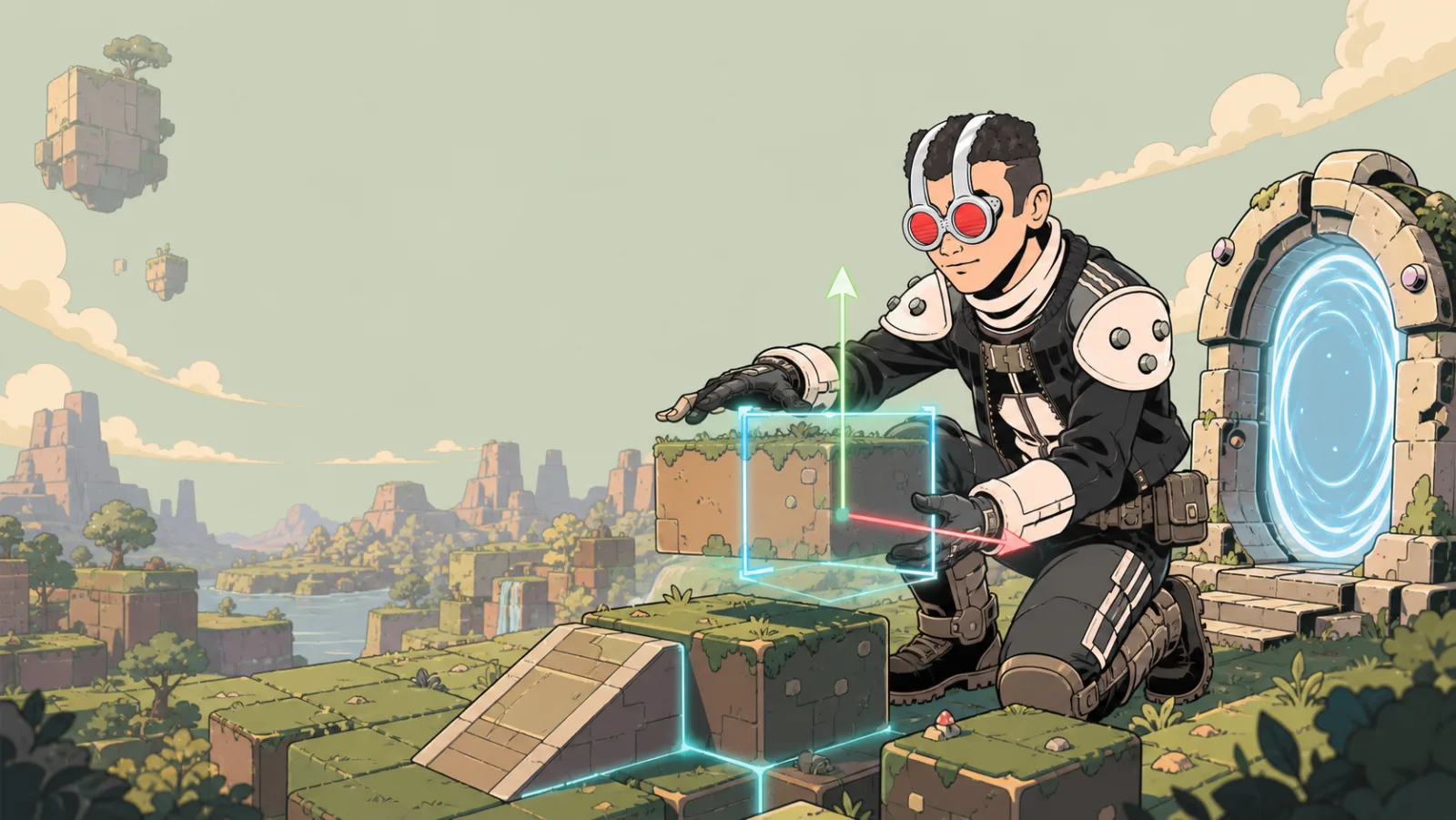
Build Mode and Placing Items
Build Mode is where you add, arrange, and configure the things players see in your space. It is designed to be visual: choose an item, point at the world, and place it.
What is in Build Mode?
The creator rail gives you these public work areas:
- Tools — add built-in building tools such as Images, Build Blocks, Portals, lights, and triggers.
- Items — place supported items already available to your space.
- Scene — work with the scene-level setup for your space.
- Tasks — open the no-code interaction workspace.
- Variables — manage values that your interactions can use.
- Settings — configure the space itself, including environment, movement, camera, audio, and access.
You do not need to understand every panel before you start. A 3D Shape or Image is a good first item because you can see the result immediately.
Place an item
- Enter Build Mode from the creator controls.
- Open Tools for built-in tools, or Items for supported items already available to your space.
- Select the card for the item you want to add.
- The new item follows your pointer in the scene. Aim at a visible surface where you want it to go. A placement grid appears on a valid surface.
- Click once, or release the pointer without dragging, to place the item.
If you drag the pointer instead of making a click, the camera pans and the item remains held. If the surface is not valid for placement, the item also remains held so you can choose another spot.
Make a quick first scene
Try this one-minute exercise:
- Open Tools and choose Build Block.
- Select a shape and place it on the ground.
- Place two more shapes beside it.
- Select each one and use the transform controls to give it a different position, rotation, or size.
See Move, Rotate, Scale, and Duplicate for the transform controls, and Tools Overview to pick the right tool for your next object.
After placement
Select a placed item to edit it. The available controls depend on that item's purpose: an Image has media settings, while a light has lighting settings. Not every setting applies to every item.
Test regularly from a player's point of view, especially after adding objects that move, play media, or affect gameplay.