Shape Settings
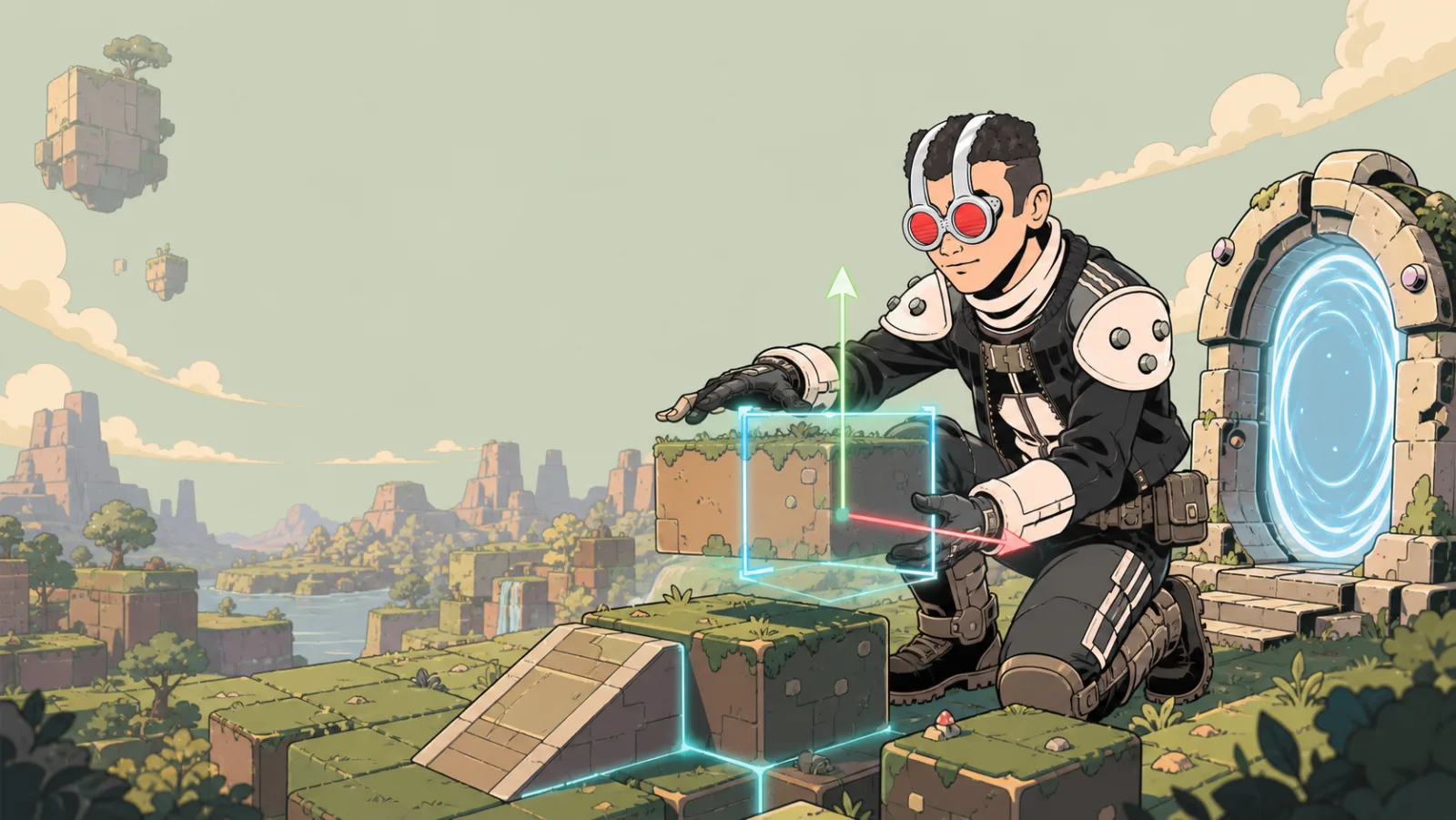
Shape Settings is the item panel for a resizable shape. Use it for the shape's behavior in the world; use the separate Texture Menu for its surface and material controls.
Open Shape Settings
- Select a resizable shape in Build Mode.
- Open its item menu and choose Settings.
- Adjust the controls below, then close the panel and test the shape as a player.
Controls
| Control | What it changes | Recommended use |
|---|---|---|
| Collider on | Whether the shape participates in collision. | Keep it on for floors, walls, and platforms that should stop players. |
| Shadow on | Whether the shape casts a shadow. | Turn it off for small decorative items when the shadow distracts from the scene. |
| Make AI Walkable | Marks the shape as navigable for AI movement. | Use it only for intentional walkable surfaces such as a floor or ramp. |
| Physics Settings → Edit | Opens persistent item-physics controls. | Use it for a pushable or force-reactive shape. |
| custom title | Gives the placed item a clear creator-facing name. | Name repeated items by their role, such as start platform or blue key block. |
Collision versus physical motion
Collider on and Has Physics are separate choices. A collider makes a shape block or interact with movement; it does not make it fall or respond to force. For gravity, pushing, weight, saved position, and movement locks, open Physics Settings.
Example: an AI-friendly bridge
- Build a bridge from one or more resizable shapes.
- Keep Collider on enabled so players cannot fall through it.
- Turn on Make AI Walkable for the bridge surfaces only.
- Update the room's navigation mesh from Building settings.
- Test the route with the relevant AI behavior before decorating the bridge.
Do not mark every decorative shape as walkable. Only paths, floors, ramps, and similar intentional surfaces need it.