Build Block
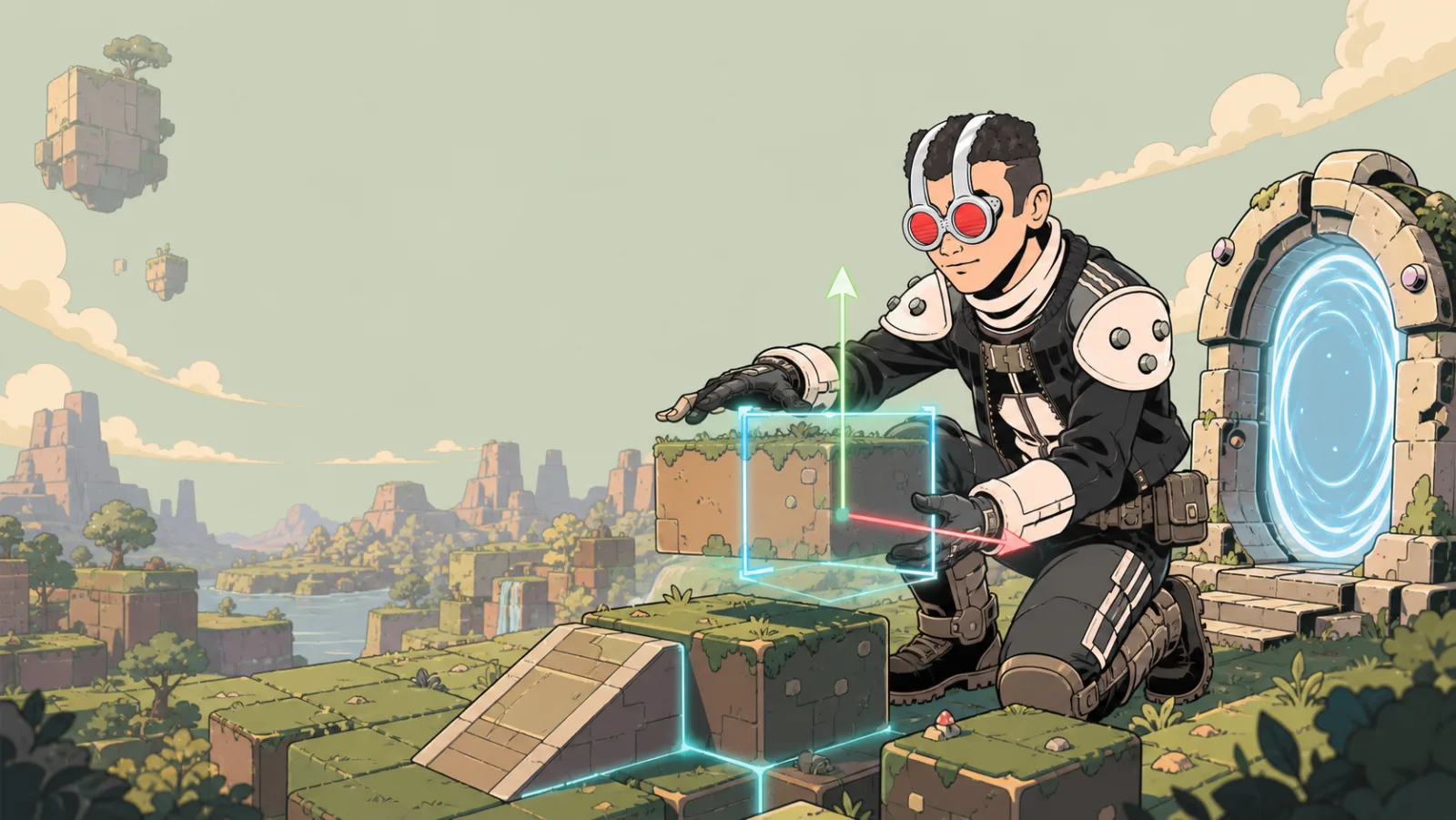
Build Blocks are resizable 3D shapes. Use them for quick floors, walls, platforms, ramps, simple props, or a first layout before you import detailed models.
Add a shape
- Open Tools and choose Build Block.
- Choose the shape that best matches the job.
- Place it in the scene.
- Use Move, 3D Rotate, and Scale to form the layout.
- Select the shape again to open its surface or behavior settings.
Build a clear first route
Start with just three shapes: a floor, a wall, and a raised platform. Scale and align them before adding details. This makes it easy to check whether a player can move through the route without loading a large custom model.
Configure the placed shape
- Use Texture Menu for Color, Transparency, Emission, Smoothness, Metallic, and Texture Tiling.
- Use Shape Settings for collision, shadows, walkability, and a custom title.
- Use Physics Settings only when the shape should respond persistently to gravity, pushing, or force.
If a supported texture source is available for the shape, test its tiling on a long wall or floor before duplicating it. A texture that looks right on a small cube can appear stretched at player scale.
After placement
Use Transforms for exact placement. Build a navigation surface only after the layout is close to final; structural changes can require rebuilding it in Building.
Test checklist
- Can a player stand and move on the intended surfaces?
- Do wall and floor joins line up from a player's camera?
- Are any oversized shapes blocking the route by accident?
- Does the surface remain readable in the current Scene lighting?