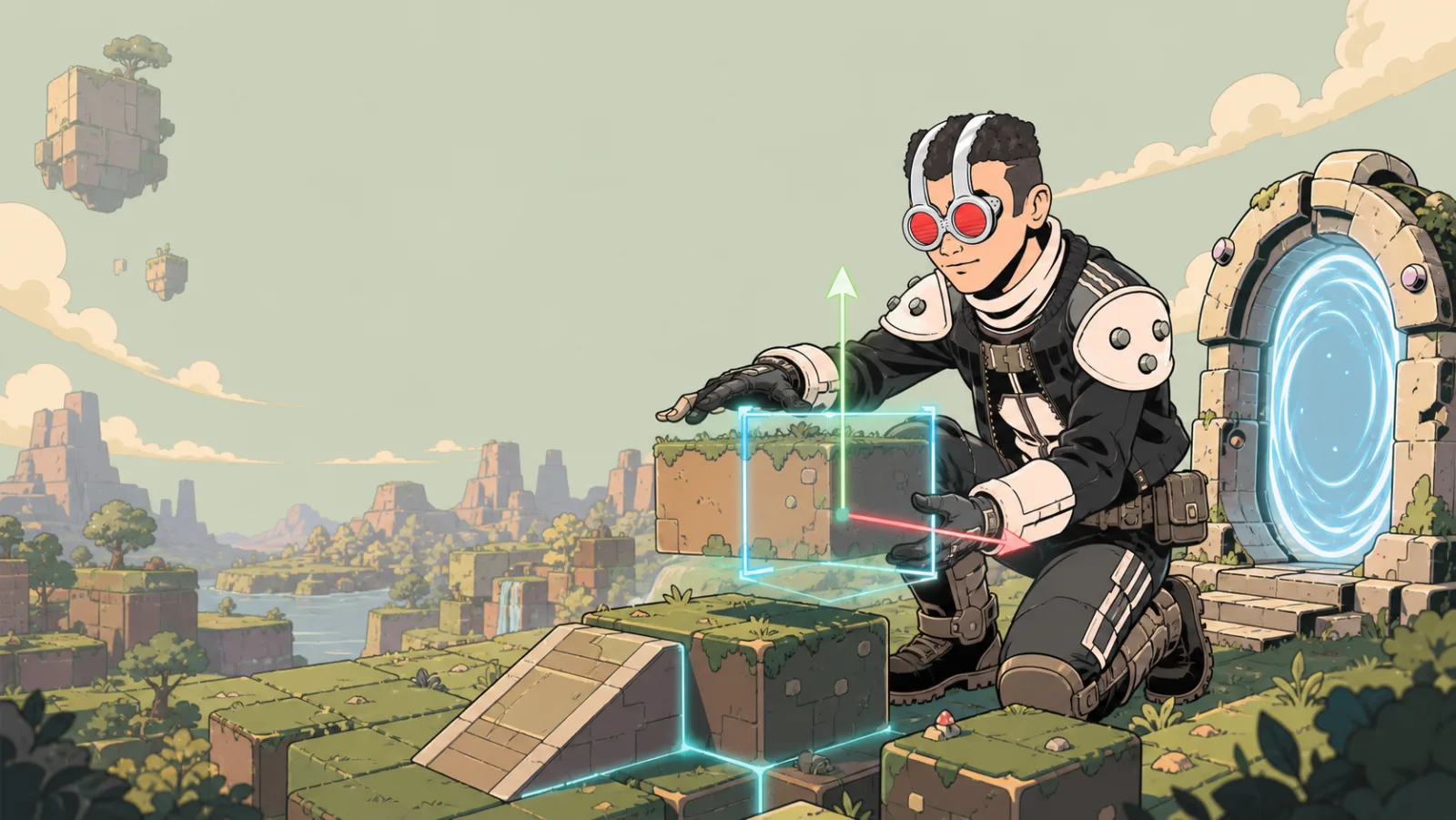
Custom GLB
Use Custom GLB to add your own 3D model to a room. A GLB is a single 3D model file that can include its geometry, materials, and textures.
Add a model
- Open Tools and choose Custom GLB.
- Paste a direct GLB URL or upload a GLB file.
- Select Spawn GLB and place the model in the room.
- Use transform controls to position, rotate, and scale it.
- Select the placed model to review its GLB Settings, including collision, shadows, size, camera fade, and persistent physics.
Some import flows offer a Draco compatibility choice. It is not an automatic optimization step. Prepare the model carefully and test the actual result in a small area before placing many copies.
Prepare before importing
- Export one self-contained GLB instead of a model that depends on files next to it.
- Apply a sensible scale and orientation in your 3D application.
- Remove hidden geometry and unused materials.
- Use texture sizes that match how close players will get to the object.
- Test collisions and shadows from a player's view.
Example: add a custom landmark
- Import one landmark GLB near the room entrance.
- Scale it until it is readable without blocking a path.
- Walk around it to check collisions and camera visibility.
- Only then add lighting, text, or interactions around it.
See Assets and Performance for general preparation guidance and Physics Settings when the imported model should react physically in play.