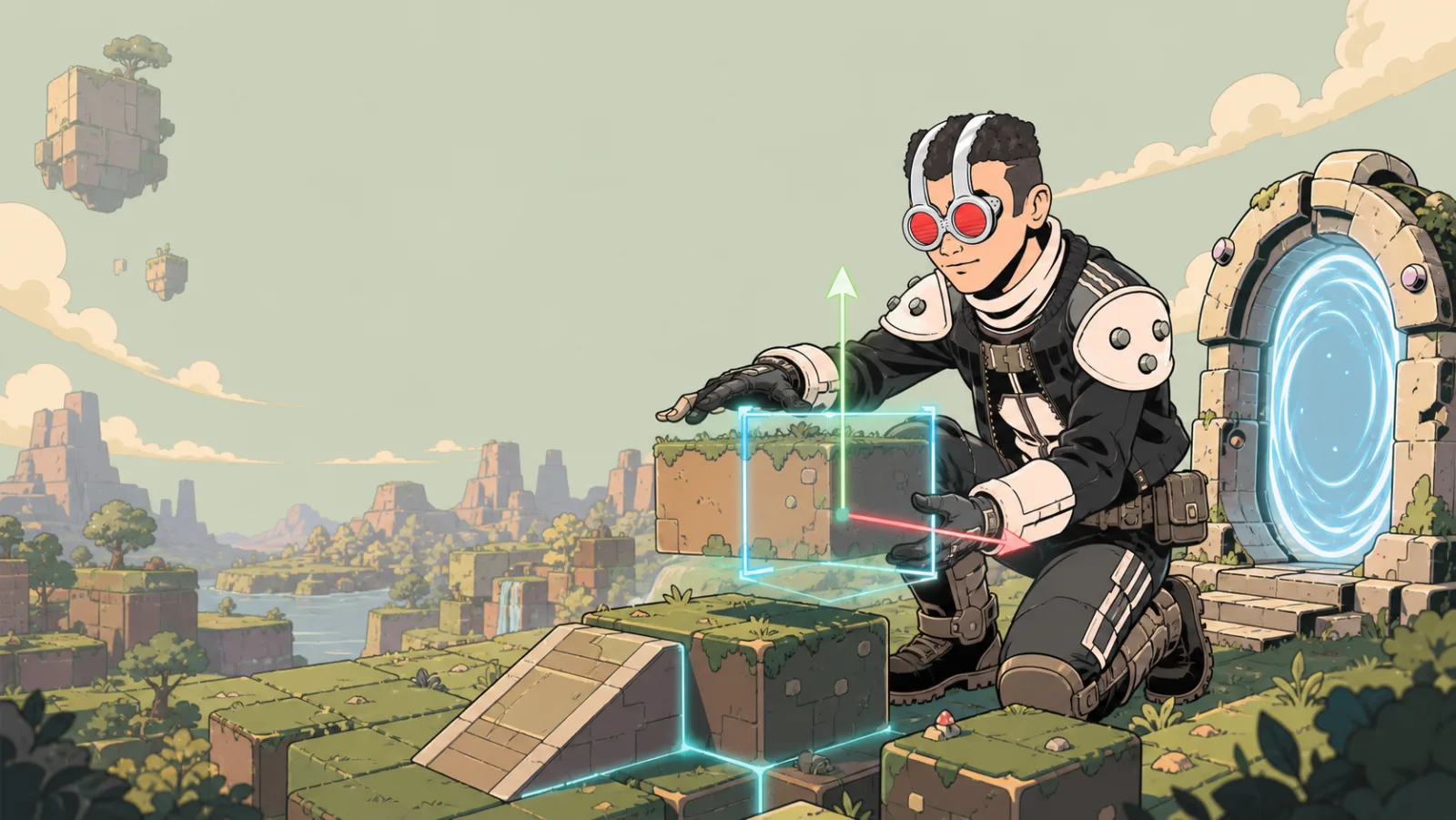
GLB Settings
GLB Settings is the standard item panel for an imported GLB model. It is for a normal placed model, not every specialized item that happens to use a model. Items such as NPCs, collectibles, destructibles, and vehicles have their own tool settings.
Open the model's item menu, choose Settings, then use the controls that match the player behavior you want.
Controls
| Control | What it changes | When to use it |
|---|---|---|
| Collider on | Whether the model participates in collision. | Keep it on for solid scenery and platforms. |
| Shadow on | Whether the model casts a shadow. | Turn it off for a visual-only accent if its shadow is distracting. |
| Size | The model's uniform size. | Set player scale before testing collision or camera behavior. |
| GLB URL | The source URL for the imported model. | Replace it only with the intended prepared GLB source. |
| Local Animation | Plays animation locally instead of synchronizing it between players. | Use it only when players do not need to see the same animation timing. |
| Camera Fade | Lets the camera fade through the model instead of avoiding it. | Useful for large foreground scenery that should not block the player camera. |
| Remove First Frame | Removes a first empty animation frame. | Use it only when the model visibly begins with an unwanted empty frame. |
| Physics Settings → Edit | Opens persistent physics controls. | Use it for a physical prop rather than static scenery. |
| custom title | Gives the placed model a clear creator-facing name. | Name it by purpose, such as lobby statue or bridge railing. |
A safe imported-model workflow
- Start with a prepared GLB that looks correct outside the game.
- Place it, set Size, and check it from the player camera.
- Turn on Collider on only if players should collide with it.
- Test Camera Fade from the angles where the model is close to the player.
- If it is animated, decide whether the animation should be synchronized; otherwise leave Local Animation off.
- Use Physics Settings only after the static model behaves correctly.
Important material note
The resizable-shape Texture Menu does not edit a standard GLB's authored materials. Make material changes in the model source, then use the correct GLB URL when you are ready to replace the placed model.
Important: Changing GLB URL changes the model source when you close the settings. Keep the original source handy and test the replacement in a small area before using it throughout a game.