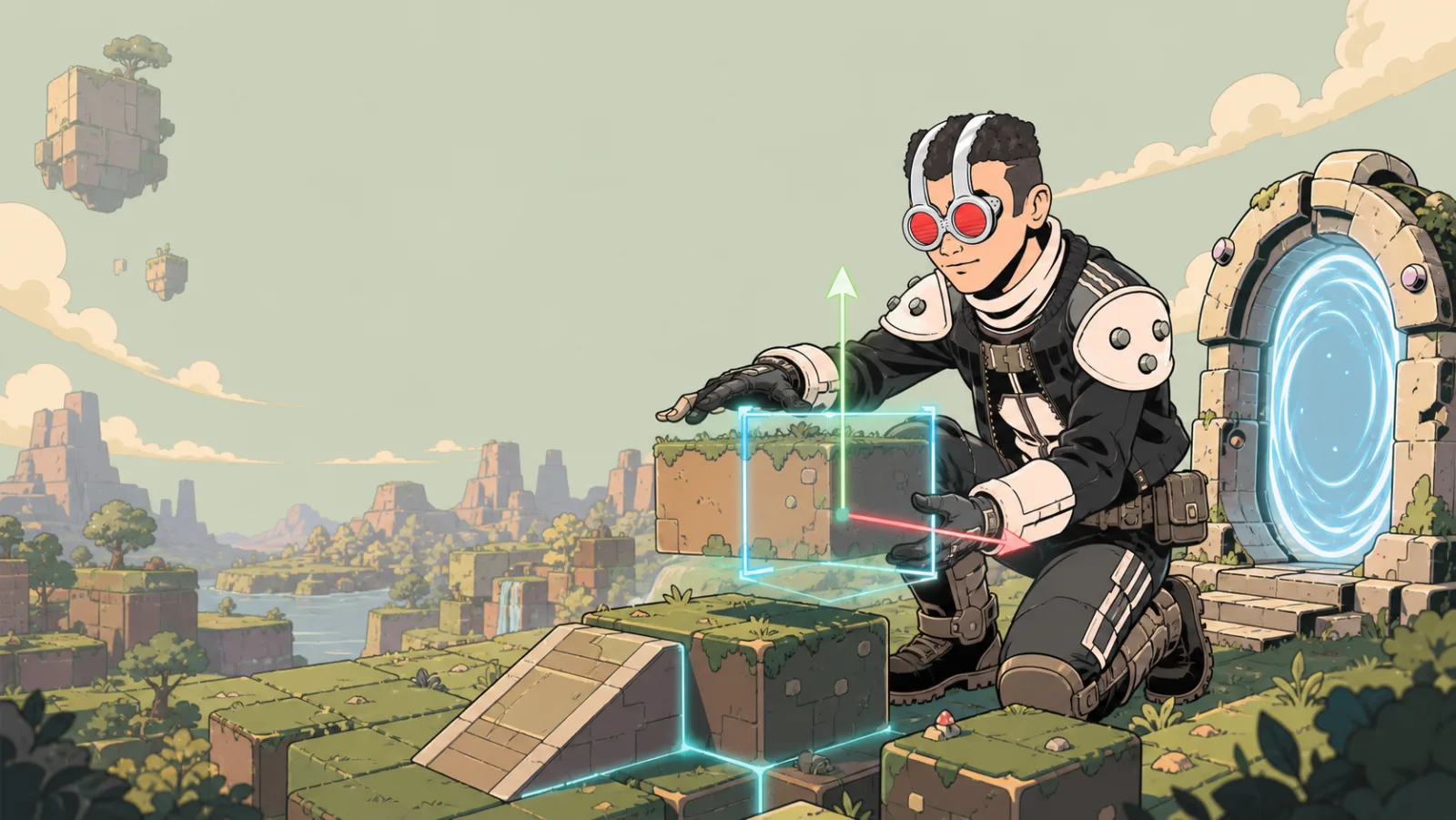
Item Settings
After placing an item, select it and open its item menu to change the controls that belong to that item. The right setting starts with identifying what you placed: a resizable shape and a standard imported GLB do not expose the same options.
Pick the right guide
| You placed | Use this guide | What it changes |
|---|---|---|
| A resizable shape, such as a cube, sphere, cone, or ramp | Texture Menu and Shape Settings | Its surface, collision, shadows, walkability, and shape physics entry point. |
| A standard imported GLB | GLB Settings | Its model URL, size, animation behavior, collision, shadows, and GLB physics entry point. |
| Either of the two above and it should react physically | Physics Settings | Persistent physical behavior, movement locks, saved resting position, and a physics label. |
Specialized items can have their own panels. For example, a Portal, NPC, light, or vehicle is configured through its dedicated tool guide rather than the standard GLB guide.
A reliable item-configuration pass
- Place one item near a clear test area.
- Set its size and location before fine-tuning its surface or collision.
- Open the settings that match the item type, make one change, and close the panel so the change is saved.
- Leave Build Mode and try the item as a player.
- Duplicate it only after the first version behaves as intended.
Two common mix-ups
Collision is not physics
Collider on controls whether a shape participates in collision. It does not make the item fall, roll, or react to force. Use Has Physics inside Physics Settings when the item should have persistent physical behavior.
A texture is not a generic GLB material editor
The right-click Texture menu is for resizable shapes. A standard imported GLB keeps the materials authored in its model file. If a visual change does not appear for a GLB, check the source model and its GLB Settings rather than looking for the shape Texture menu.
Before you finish
- Check the item from the player camera, not only the editor camera.
- Walk into anything that should block movement.
- Test a physical item after leaving and returning to the game.
- If an item guides a player, make sure its shape, shadow, and contrast remain readable in both Day and Night.