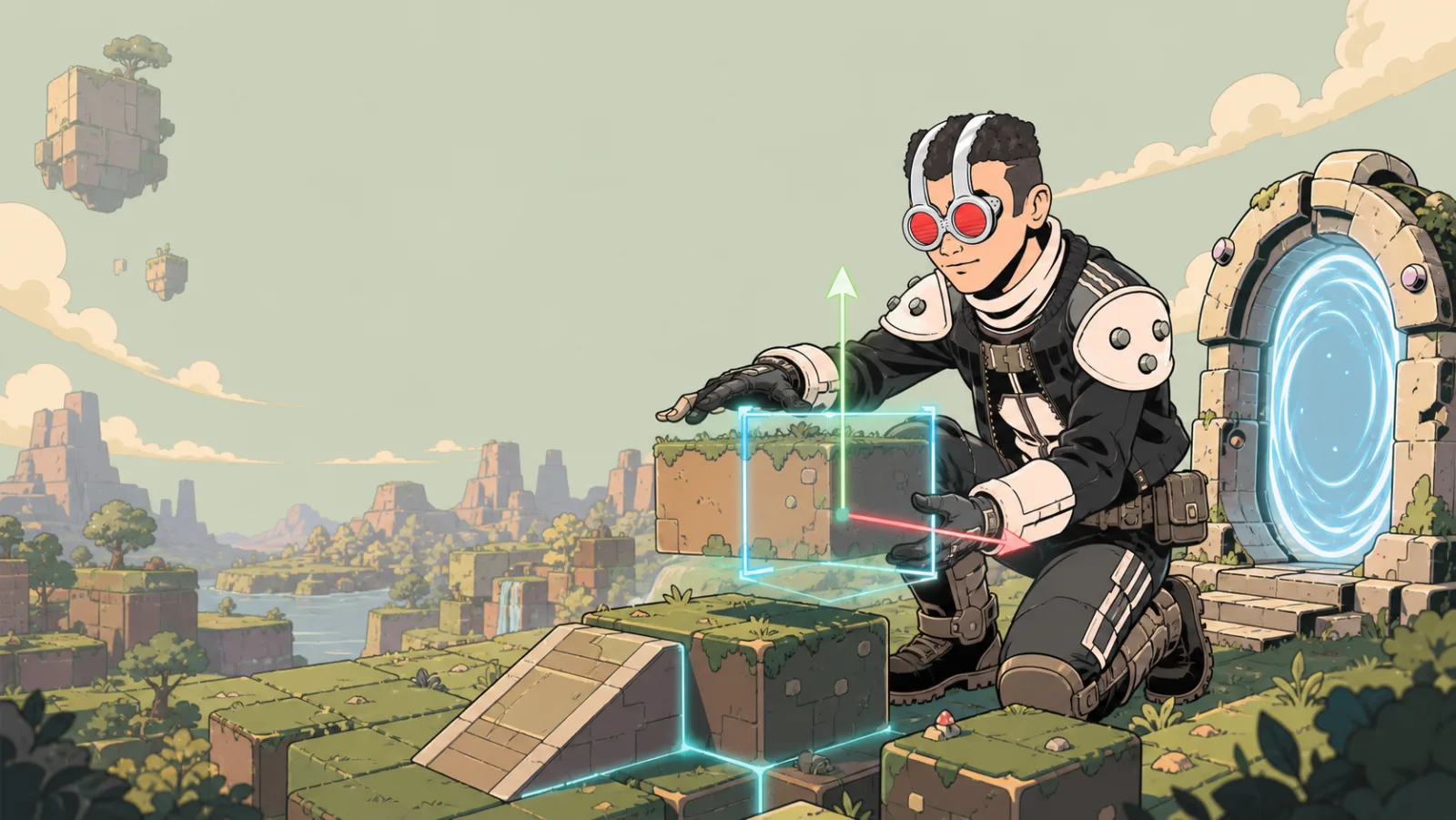
Build Tool Preferences
Build Tool Preferences are personal builder settings, not room settings. They are saved for you and carry across sessions and spaces. Use them to make Build Mode feel comfortable without changing what another builder sees.
Open the space menu, choose Building, then adjust the tools and gizmo handles you use most often.
Tools
| Control | Choices or behavior | What it changes |
|---|---|---|
| default tool | Grab, Move, Rotate, or Scale | Which transform tool is selected when you open Build Mode. |
| hide grab tool | On or off | Removes the hand/grab tool from the build bar. When it is hidden, Grab cannot be the default tool. |
| hotbar | On or off | Shows a quick-place bar at the bottom of the screen. Drag items onto slots, choose a slot, then click in the scene to place that item. |
The selected default tool and the hidden-grab choice take effect the next time Build Mode opens.
Gizmo handles
| Control | What it changes |
|---|---|
| move plane handles | Shows the flat move-gizmo squares that drag along two axes at once, such as XY. |
| free move circle | Shows the center move-gizmo circle for free screen-plane movement. |
| free rotate | Lets you drag inside the rotate-gizmo rings for trackball-like rotation. |
| uniform scale | Shows the outer scale-gizmo circle for even scaling on all axes. |
| scale plane handles | Shows the flat scale-gizmo squares that scale along two axes at once. |
Handle changes refresh the active gizmo immediately, so you can compare the options while editing an item.
A useful first setup
- Keep Grab visible until you are comfortable with the other transform tools.
- Choose Move as the default tool if most of your work is placement.
- Turn on hotbar when you are placing many copies of the same item.
- Leave all gizmo handles visible at first, then hide only the ones that make the editor harder to read.
For room-wide snapping, grid display, and navigation-mesh settings, use Building instead.