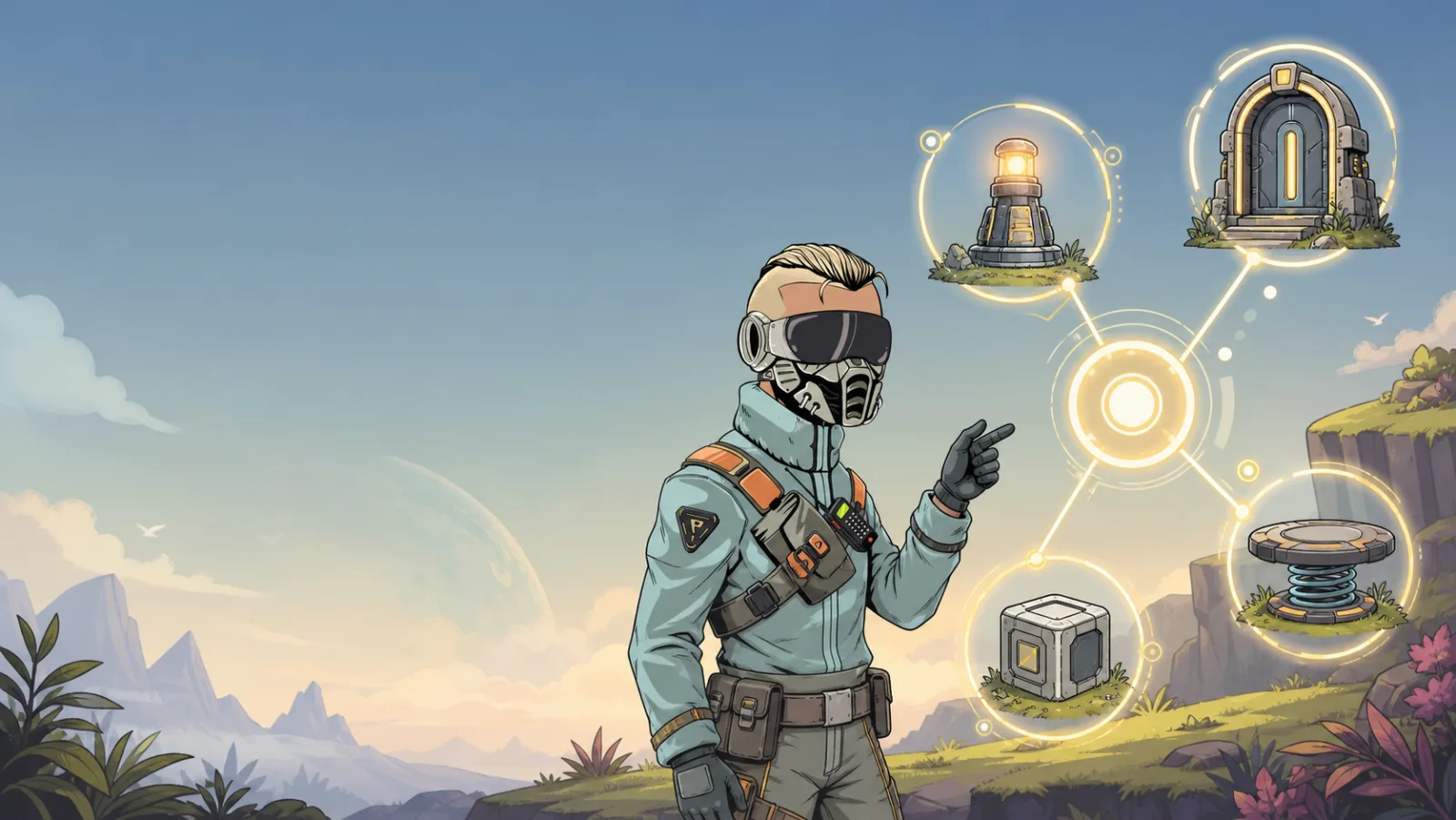
Edit Info Box
What it does
Edit Info Box clears the current in-space info box, sets a new title, and shows the list of instruction lines you provide. When the effect's state ends, the info box closes.
Required item compatibility
Add it through a compatible item that shows this effect in its Tasks panel.
Setup
- Add Edit Info Box to the task state where the instructions should appear.
- Enter a concise title.
- Add one instruction or description per info-box element.
- Test the player path and confirm the box closes at the intended next state.
Settings
| Setting | What it means |
|---|---|
| Info Box Title | Header shown at the top of the info box. |
| Info Box Elements | Ordered lines shown beneath the title. Put a key in square brackets, such as [R] or [LeftClick], to show its button icon. |
Tiny example
Starting a glider lesson shows How to Fly with three lines: [W] move,
[Space] jump, and Reach the first ring.
Test and troubleshoot
- Keep each element to one short, scannable instruction.
- Verify the key icon and the actual player control agree.
- Use a task transition to close or replace the box instead of stacking multiple instruction panels.