Multiplayer Tasks
What it does
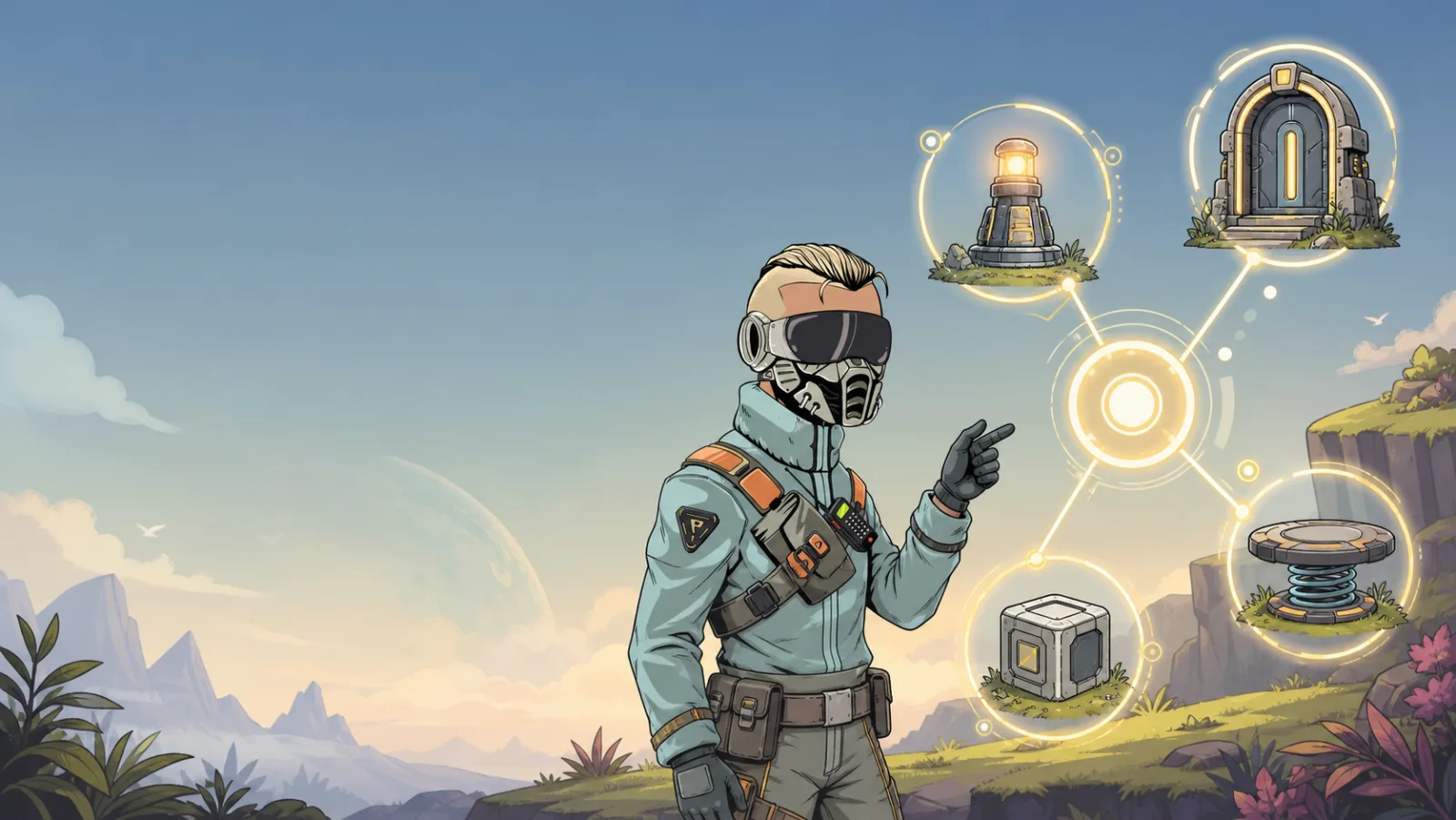
A multiplayer task has one shared state for the space. When any player changes the task, effects connected to that task update for everyone who can see the relevant item.
When to use it
Use a multiplayer task when one player's action changes the shared world:
- A gate opens for the whole room.
- A match begins or ends.
- A shared puzzle step is solved.
- A room-wide announcement, object, or camera event should be coordinated.
Use Single Player Tasks for personal progress and private interactions.
Setup
- In Space Options → Tasks, add a task and choose Multiplayer.
- Name the shared event clearly, for example
Gate Open. - Attach a trigger that changes the task, such as a click or a Trigger Zone entry.
- Attach effects to the same task state on the item or items that should change.
- Decide how the task returns to Not Active if the event is repeatable.
Important behavior
- There is only one current state, not one state per player.
- A trigger that requires
Not Active → Activecan be used once while the task is Not Active. Other players cannot start it again until the task is reset. - Persistence is still configurable. A persistent shared task keeps its state between visits; a non-persistent one is appropriate for a fresh round.
Example: shared gate
Create a multiplayer task called Gate Open.
- Add Click on the control button:
Not Active → Active. - Add the gate-opening animation on Active.
- Add a reset control, timer, or exit rule that moves
Active → Not Activewhen the gate should close.
When Player A presses the button, every player sees the gate open. Test with at least two players before treating shared timing as final.
Test and troubleshoot
- Join from a second player or a second test session. Both should see the same world state after the first player triggers it.
- If every player can independently open or close the item, check that the task was not created as single-player.
- If the state seems stuck, inspect the task in Node View and make sure there is a deliberate return transition.