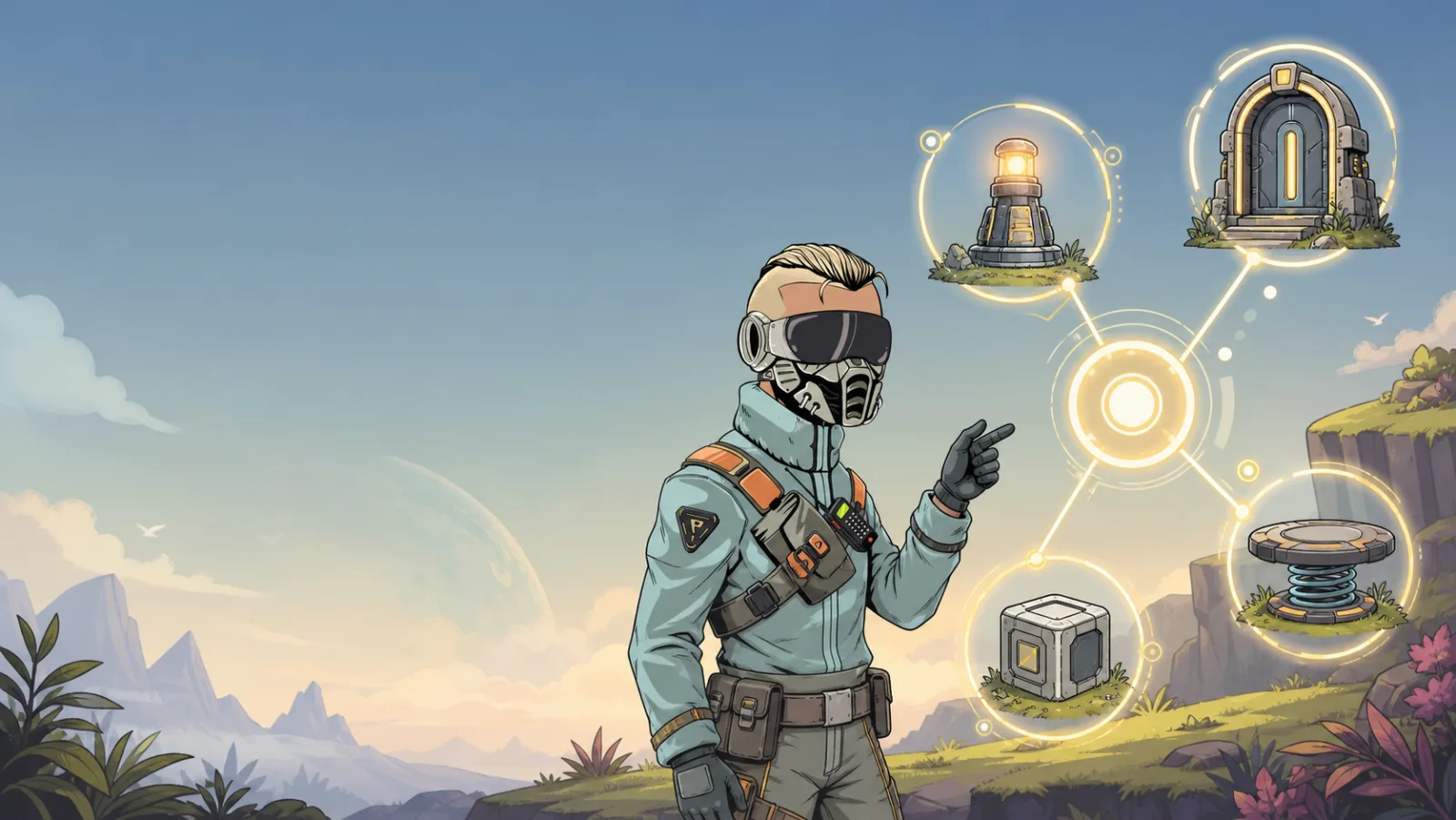
Node View
What it does
Node View is a visual map of your Interactive Studio setup. It is the fastest way to answer: “Which item changes this task?” and “What happens when this task becomes Active?”
Open it from Space Options → Tasks, then choose Graph at the bottom of the Tasks panel.
How to read the graph
| Node | What it represents |
|---|---|
| Item | The object that owns a trigger or receives an effect. |
| Trigger | An event that moves a task between states. |
| Task | The stateful interaction itself, including whether it is single-player, multiplayer, or non-persistent. |
| Effect | A world change that runs while its linked task is in a chosen state. |
Follow the lines in order: item → trigger → task → effect → item. A dependency is a separate link from the prerequisite task into the task it unlocks.
Use it to build safely
- Create a task, trigger, and effect in their normal panels first.
- Open Node View and confirm the trigger and effect point at the intended task.
- Select a node to edit its settings without losing the bigger picture.
- Keep one small flow visible while testing it. Add the next step only after the first flow works.
Example: find a broken door
If a door is not opening:
- Find the door item in the graph.
- Follow its Click trigger to the task. Check the trigger's source state and destination state.
- Follow the task to the open-animation effect. Check that the effect is attached to Active, not Not Active or Completed.
- Check whether a second trigger immediately resets Active back to Not Active.
This is usually faster than opening each item in the scene one by one.
Test and troubleshoot
- A missing link usually means the trigger or effect was saved on a different task than expected.
- If a dependency prevents progress, inspect the prerequisite task's current state.
- Node View shows structure, not a replacement for in-space testing. Test the player path after the graph looks correct.