Click
What it does
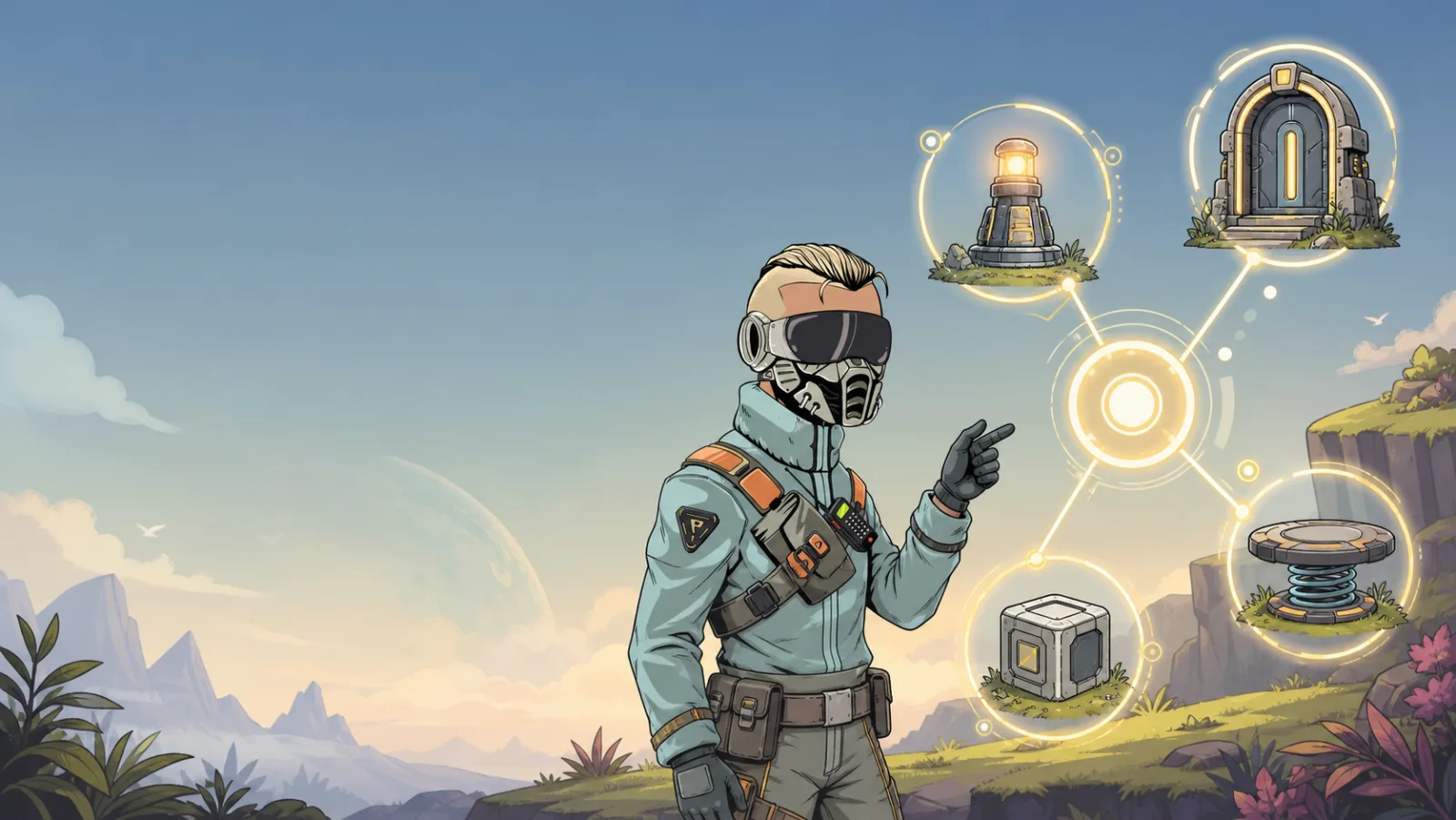
Click changes a linked task when a player clicks the selected item. It fires after a normal click, not while the player is dragging the item.
Required item compatibility
Select an item whose Tasks panel offers Click. Current supported examples include building cubes, nine-slice cubes, imported models, paintings, vehicles, and world text. A Trigger Zone is for enter/exit events instead.
Setup
- Select the clickable item and open its Tasks panel.
- Add Click, choose the linked task, and choose the source and destination states.
- Add effects to the task state you want the click to reveal.
Settings
| Setting | What it means |
|---|---|
| Distance | Maximum click distance. 0 means no distance limit. |
Tiny example
A museum plaque uses Click to move Not Active → Active. Its Active state opens an iframe with more information; clicking again does nothing until another trigger resets the task.
Test and troubleshoot
- If it does not fire, make sure the item is selected in normal play rather than Build Mode.
- If a drag begins instead, use Drag Start when that is the behavior you want.
- If the click works from too far away, set a non-zero Distance.