Single Player Tasks
What it does
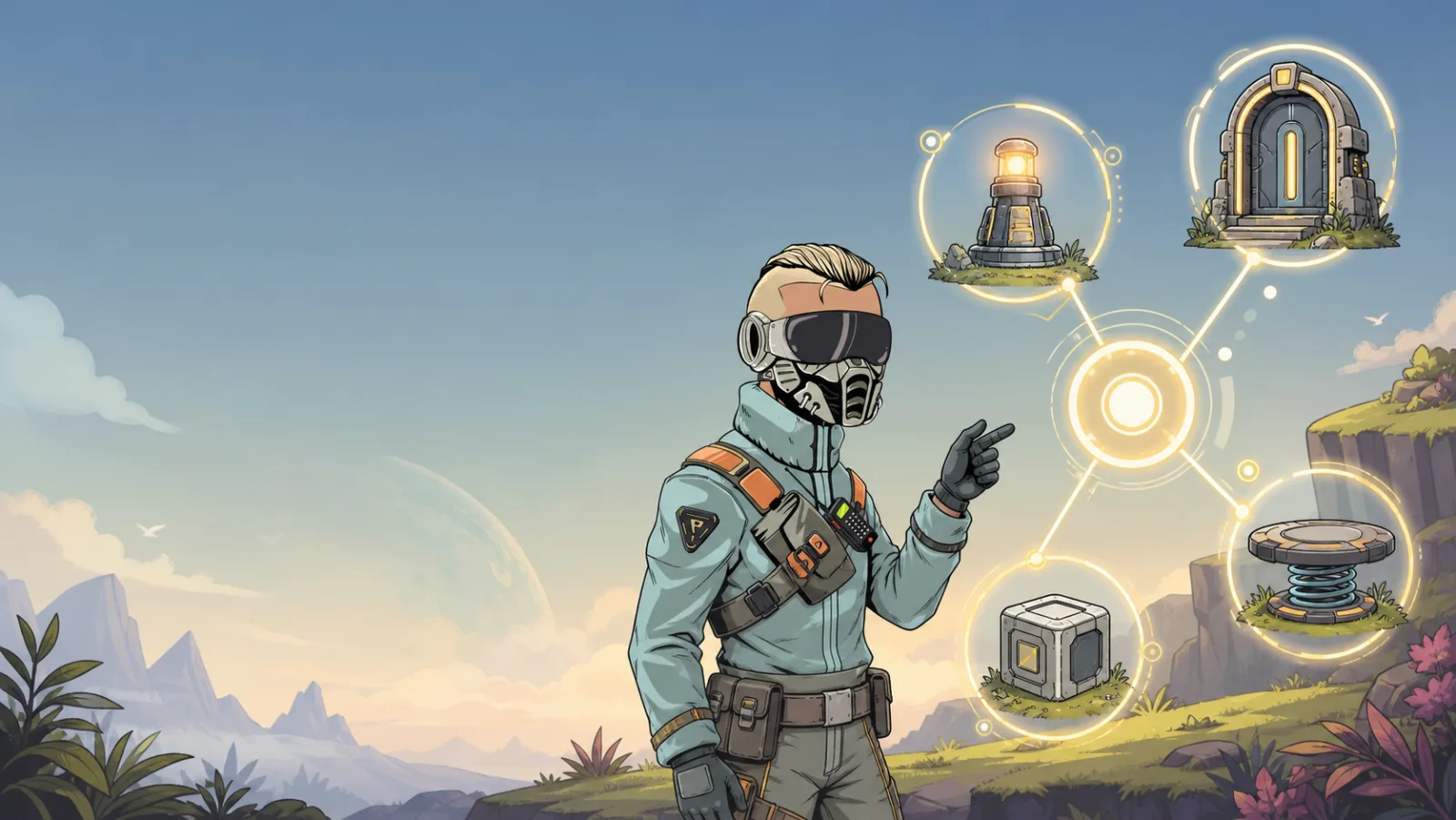
A single-player task stores a separate state for each player. When one player changes Library Door to Active, only that player sees effects connected to their copy of Library Door. Other players keep their own state.
When to use it
Use a single-player task for personal progress or a private interaction:
- A door that opens only for the player who clicked it.
- A collectible, hint, or tutorial step.
- A solo timer, score, or quest.
- A personal camera or iframe overlay.
Use a multiplayer task when the entire room should see the same result.
Setup
- Enter Build Mode and open Space Options → Tasks.
- Add a task and choose Single Player.
- Give it a concise, unique name, such as
Library Door. - Add triggers on the items that should change the task's state.
- Add effects on the items that should react at Not Active, Active, or Completed.
State and persistence
Each player starts with their own Not Active state. By default, a task is persistent, so a completed personal quest can still be completed when that same player comes back later. Turn on Non-Persistent for a fresh start on a future visit.
Example: private door
Create a single-player task named Library Door.
- On the door, add Click:
Not Active → Active. - On a Trigger Zone just inside the doorway, add User Exit Trigger:
Active → Not Active. - On the door, put the open animation on Active and the closed animation on Not Active.
Player A can open their door without changing Player B's view. If that feels wrong for the design, recreate the task as multiplayer before adding more logic.
Test and troubleshoot
- Test with two players when possible: one player's action should not alter the other player's task state.
- If another player sees the effect, confirm the task was created as Single Player, not multiplayer.
- If the first player cannot repeat the interaction, reset the task to Not Active or make the task non-persistent for a later visit.